How to Print Directly to WhatsApp from Any Windows App
Print from any Windows app to PrintPilot, press Share and pick WhatsApp: the PDF and your message open in WhatsApp Desktop, ready to send. Step-by-step with video.
Many customers would rather get an invoice, quote or delivery note on WhatsApp than by email. Usually that means saving the document as a PDF, finding the file, opening WhatsApp, attaching it and typing a message. PrintPilot turns this into one print command: print the document, press Share, choose WhatsApp and the chat. It works with any Windows program that has a Print button.
Watch: printing a document straight to a WhatsApp chat (44 seconds)
Auto Print to PDF & Send Email with PrintPilot
Stop wasting time on manual document printing. Start your free trial.
1What “print to WhatsApp” means in PrintPilot
PrintPilot is a virtual printer for Windows. When you print to it, it turns the document into a PDF and opens its Send printed document window. Besides sending by email, this window has a Share button. Share opens the standard Windows share window with the PDF already attached, and from there you hand it to WhatsApp. The subject and message from the send window go along as text, so the recipient gets a short note and the PDF together.
2What you need
A PC with Windows 10 (version 1809 or later) or Windows 11. The WhatsApp desktop app, free from the Microsoft Store and linked to your phone. The share window lists apps installed on the PC, so WhatsApp Web in a browser is not enough. PrintPilot with a trial or a paid plan; Share is not available on the free Freemium plan.
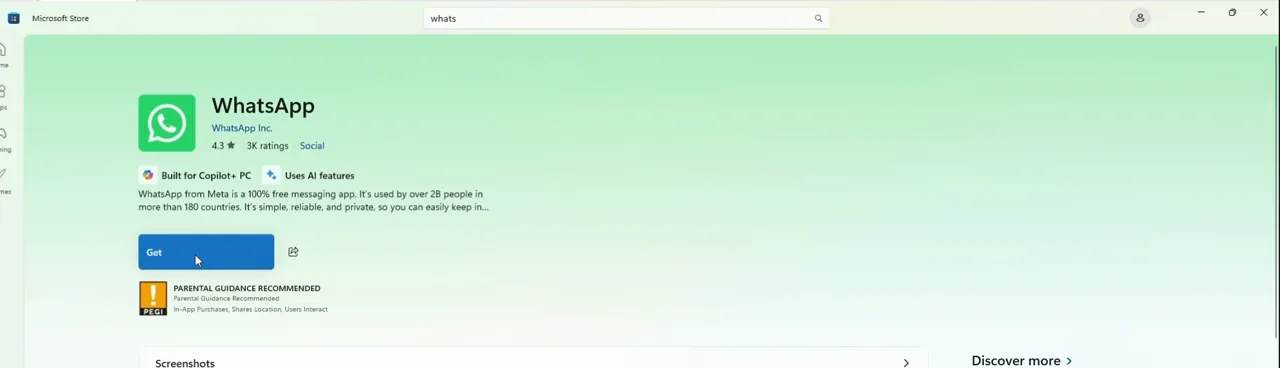
WhatsApp desktop app page in the Microsoft Store with the Get button
3Step 1: Print the document to PrintPilot
Open the document in any program (an ERP or accounting system, Excel, Word, a PDF reader or a web browser), press Ctrl+P and choose the PrintPilot printer. To try it first, press Print a test page in the PrintPilot dashboard. A moment later the Send printed document window opens.
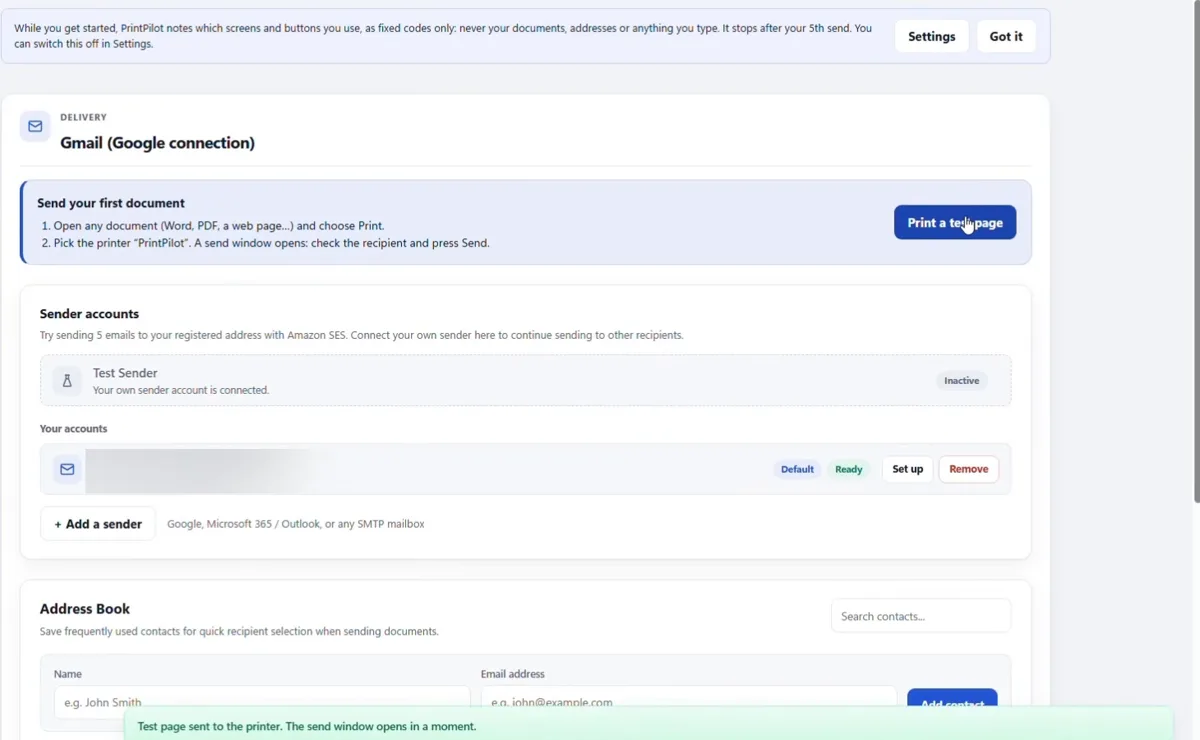
PrintPilot dashboard after pressing Print a test page: the send window opens in a moment
4Step 2: Choose Manual recipients and press Share
In the send window select Manual recipients (To / Cc / Bcc). Check the subject and message: they are sent to WhatsApp as the text that goes with the PDF. You do not need to fill in an email address. Press Share, next to Dismiss.
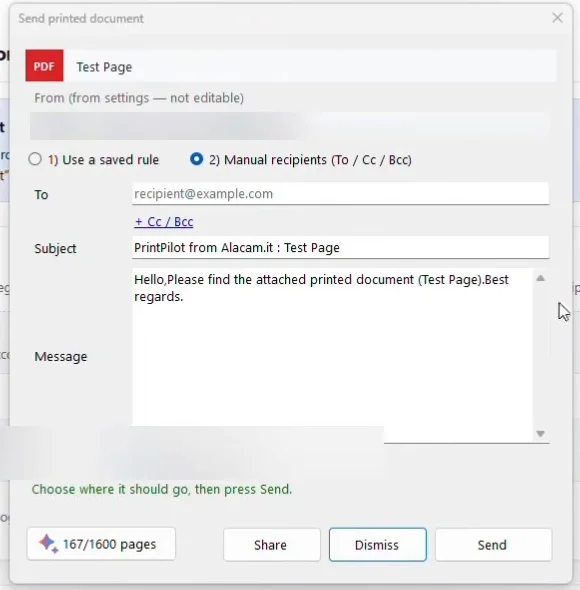
PrintPilot Send printed document window with Manual recipients selected and the Share button
5Step 3: Pick WhatsApp in the Windows share window
The Windows share window opens with the PDF attached. Under Share using, click WhatsApp. If you close the share window without choosing an app, the PrintPilot send window stays open and nothing is sent.
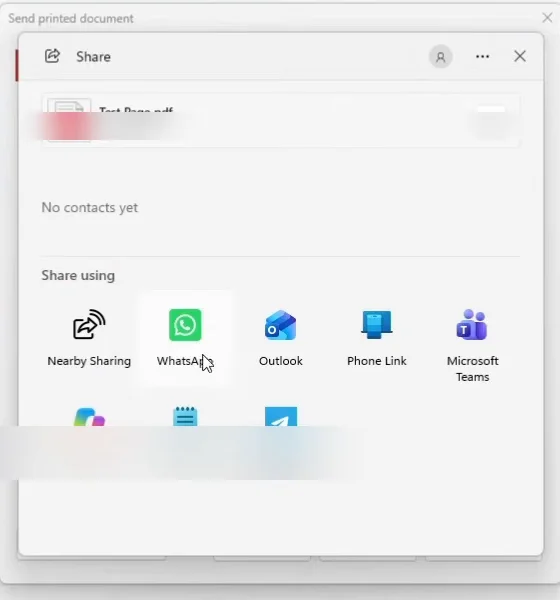
Windows share window with the PDF attached and WhatsApp under Share using
6Step 4: Choose the chat and press Send in WhatsApp
WhatsApp Desktop opens its Send message to window. Pick a contact or group, add a note if you like, and press Send. PrintPilot then archives the document and closes the send window.
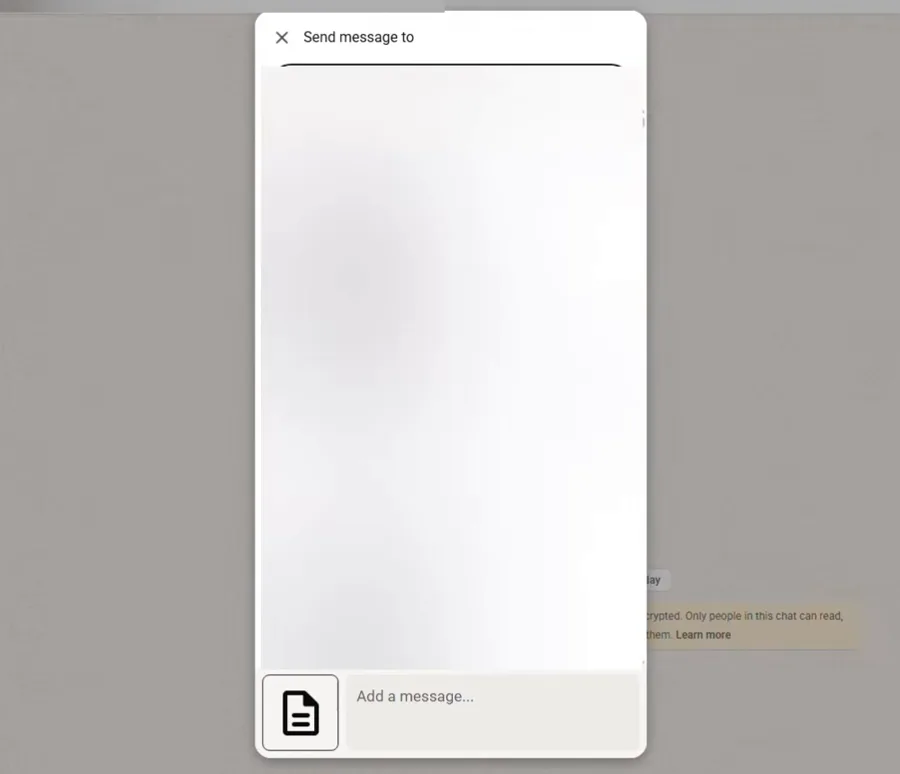
WhatsApp Desktop Send message to window for choosing the chat
7What the recipient gets
The chat shows two messages: your subject and message as text (for example “Hello, please find the attached printed document”) and the PDF itself with a preview, the page count and the file size. The recipient can open it or save it on their phone or PC.
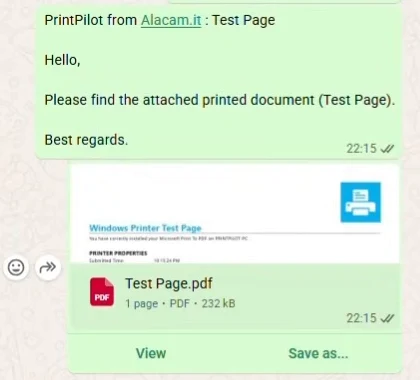
WhatsApp chat with the PrintPilot message and the Test Page.pdf attachment
8Not only WhatsApp
Share uses the Windows share window, so the same steps work with any app that appears there: Telegram, Outlook, Microsoft Teams, Phone Link or Nearby Sharing. Each app decides what it does with the text; some only take the file.
9Privacy: what PrintPilot sends and records
PrintPilot only hands the PDF to the app you choose. It does not send the WhatsApp message itself, does not upload the document to alacam.it and does not count it against your monthly email quota. The temporary copy is deleted after a day. The account only records that a share took place, without the document name, its content, the app or the recipient.
Frequently Asked Questions (FAQ)
Can I print directly to WhatsApp from any Windows program?
Yes. Any program that can print works: print to the PrintPilot virtual printer, press Share in the send window and choose WhatsApp.
Do I need WhatsApp Desktop, or is WhatsApp Web enough?
You need the WhatsApp desktop app from the Microsoft Store, linked to your phone. The Windows share window only lists apps installed on the PC.
Does PrintPilot send the WhatsApp message automatically?
No. PrintPilot opens WhatsApp with the PDF and text ready. You choose the chat and press Send yourself.
Is the PDF uploaded to the cloud?
No. The file goes straight from your PC to the app you choose. Alacam IT only counts that a share happened, without the document or the recipient.
Which plans include Share to WhatsApp?
Trials and all paid plans. On the free Freemium plan the button is visible but disabled.
Which Windows versions are supported?
Windows 10 version 1809 or later, and Windows 11.
Related articles
How to Automatically Print to PDF and Send Email from Any Windows App
Stop saving PDFs manually. Learn how to turn any Ctrl+P print job from Chrome, Excel, your ERP or QuickBooks into an emailed PDF attachment automatically with PrintPilot.
How to Email Invoices from Legacy Accounting Software (No Email Module Needed)
Older accounting and ERP programs can print an invoice but not email it. Turn their Print button into a PDF email from your own Gmail, Microsoft 365 or SMTP account with PrintPilot, step by step.
PrintPilot, Bullzip and PDFCreator Compared: Virtual Printers That Email PDFs (2026)
A fact-checked comparison of PrintPilot, Bullzip PDF Printer, PDFCreator and Microsoft Print to PDF: price, email delivery, Gmail and Microsoft 365 sign-in, local processing and silent MSI installation.
Start Automating Your Workflows Today
If your customers live on WhatsApp, send documents where they read them: print, press Share, pick the chat. Download PrintPilot and try it with a test page.
Download PrintPilot Free Trial