How to Automatically Print to PDF and Send Email from Any Windows App
Stop saving PDFs manually. Learn how to turn any Ctrl+P print job from Chrome, Excel, your ERP or QuickBooks into an emailed PDF attachment automatically with PrintPilot.
Every business day, office workers, accountants and logistics teams repeat the same tedious routine: press Ctrl+P, choose Microsoft Print to PDF, save the file somewhere, open the mail client, type the recipient and subject, drag the PDF into the message, send it, and later clean up the leftover PDFs on the desktop. Repeat that 15 to 30 times a day and it quietly eats hours every week. With the PrintPilot virtual printer on Windows 10 and 11, the whole sequence collapses into one action: Ctrl+P, then Print. PrintPilot turns the print output into a PDF on your own computer and emails it through your SMTP server, Gmail account or Microsoft account.
Auto Print to PDF & Send Email with PrintPilot
Stop wasting time on manual document printing. Start your free trial.
1How It Works: The Virtual Printer Approach
PrintPilot installs as an ordinary Windows printer. Instead of sending the job to paper, it captures the output, creates a PDF locally and hands it to your mail server as an attachment.
Because it is a normal printer, it works with any application that can print: web browsers (Chrome, Edge, Firefox), accounting software (QuickBooks, Sage), ERP systems (SAP, Microsoft Dynamics), Office apps such as Excel and Word, and older desktop or POS programs.
[Any Windows app: Excel / ERP / Chrome]
                 │  Ctrl + P
                 ▼
      [PrintPilot virtual printer]
                 │  PDF created on your PC
                 ▼
   [Your SMTP, Gmail or Microsoft account]
                 │
                 ▼
[Recipient's inbox, PDF attached]2Step 1: Select 'PrintPilot' as Your Printer
After installing PrintPilot and connecting your mail account (corporate SMTP such as Microsoft 365 or your own mail server, Gmail / Google Workspace via official Google OAuth, or a Microsoft 365 / Outlook account via Microsoft sign-in, so no app password is stored), open the print dialog (Ctrl+P) in Chrome, Excel, your ERP or any other Windows application. Choose 'PrintPilot' from the printer list and click 'Print'.
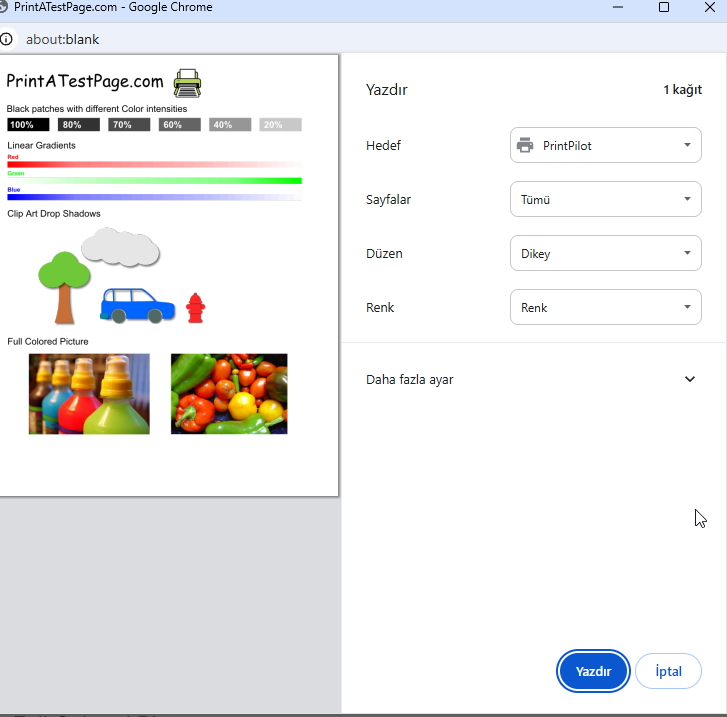
Selecting PrintPilot virtual printer in browser print dialog
3Step 2: Choose a Routing Rule or Enter the Recipient
When you print, the PrintPilot window appears. Pick one of your preconfigured routing rules or type the recipient address manually, then click Send.
For high-volume work you can define rules that route documents automatically, for example invoices to accounting and shipping labels to the warehouse, based on the document title, the source application or the content.
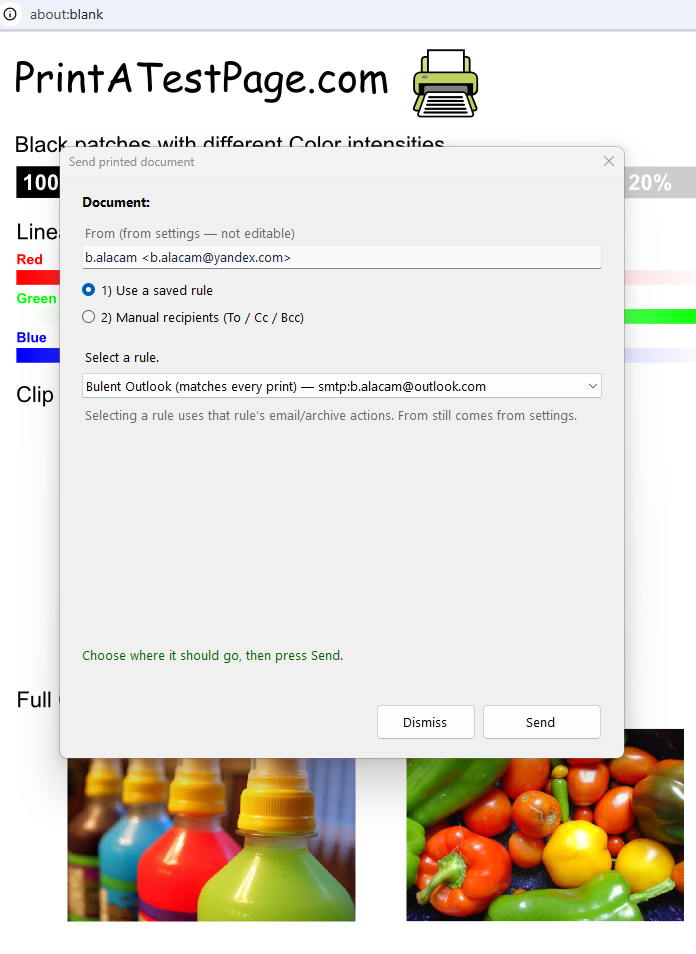
PrintPilot pop-up dialog for rule and recipient selection
4Step 3: Automatic Background PDF Creation and Sending
PrintPilot converts the print job into a high-quality PDF in the background and queues it for delivery via SMTP, Gmail or your Microsoft account. There is no Save As dialog and no PDF to hunt for and drag into an email, and your desktop stays responsive while it sends.
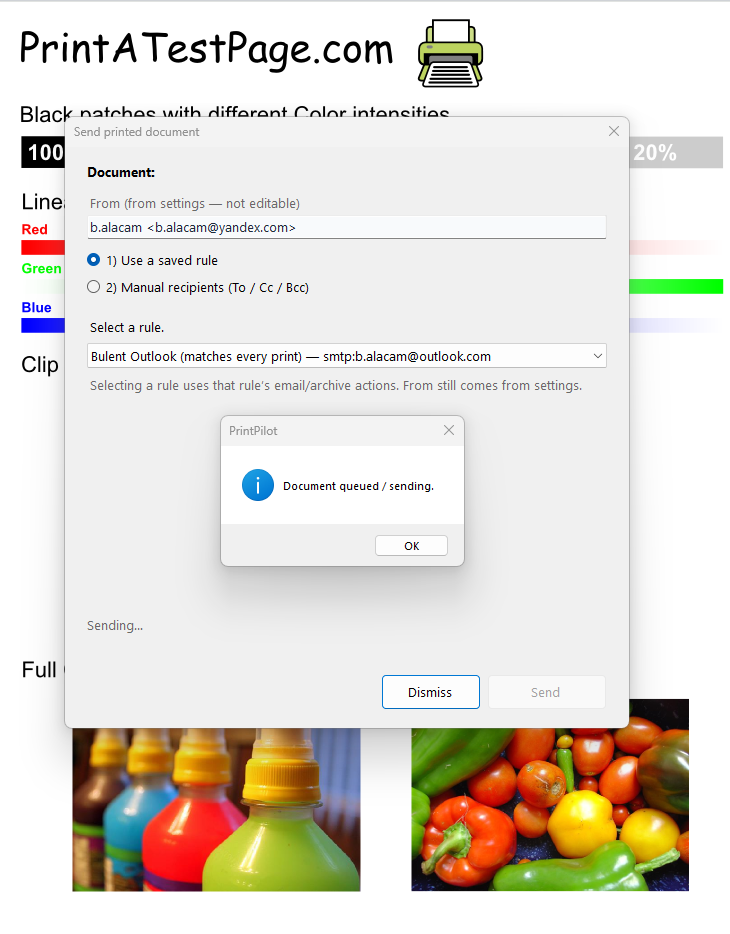
Document queued and sending confirmation in PrintPilot
5Step 4: Monitor Delivery Status in the PrintPilot Panel
Track every print job, its delivery status (Delivered, Pending, Cancelled) and your active routing rules directly in the PrintPilot desktop panel.
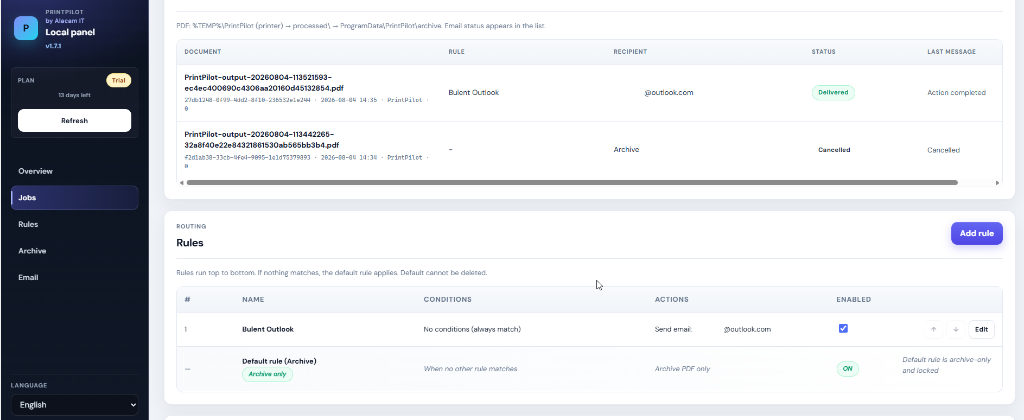
PrintPilot Local Panel dashboard showing job status and rules
6Step 5: The Recipient Receives the PDF Attachment
The recipient gets the email with your printed document attached as a PDF within seconds. No manual file uploads, no extra clicks.
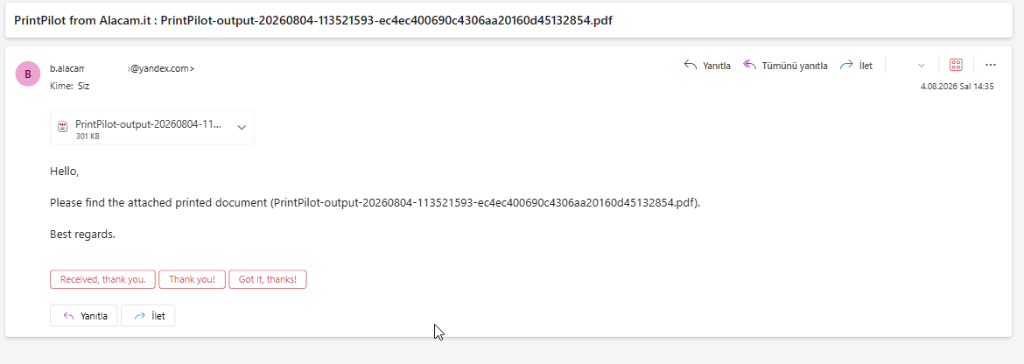
Inbox view showing automatically emailed PDF attachment
7Microsoft Print to PDF vs. PrintPilot
Microsoft Print to PDF also works with every Windows app, but it stops at the file: you still save it, open your mail client, attach it and send it, which is 6 to 7 manual steps per document.
PrintPilot takes the same print job and finishes the work: one or two clicks in the PrintPilot window, or none at all when a routing rule matches. It sends through your own mail account, and the PDF is created on your PC rather than on a third-party conversion website.
8Popular Business Use Cases
Invoicing from accounting systems: whether your billing team uses QuickBooks, SAP or a legacy desktop program, printing an invoice and emailing it to the customer becomes a single print action.
Orders and warehouse paperwork: send delivery notes, picking slips and purchase orders straight to dispatchers or logistics partners without saving PDFs to the desktop.
Confidential documents: unlike online PDF converters that upload your files to someone else's server, PrintPilot creates the PDF on your own computer and sends it directly to the mail server you chose.
Frequently Asked Questions (FAQ)
Which Windows applications are supported?
Any application that can print on Windows 10 or 11 works with PrintPilot, including Chrome, Edge, Excel, Word, QuickBooks, SAP and ERP or POS software.
Does PrintPilot require Microsoft Outlook?
No. PrintPilot sends emails itself, through your SMTP server, Gmail or your Microsoft account. The Outlook app or any other email client is not needed.
Can I use my own SMTP server, Gmail or Microsoft account?
Yes. You can connect your corporate SMTP server or sign in securely: with official Google OAuth for Gmail and Google Workspace, or with Microsoft sign-in for Microsoft 365 and Outlook. Gmail tokens are stored encrypted on your computer.
Which versions of Windows are supported?
PrintPilot runs on Windows 10 and Windows 11, both 32-bit and 64-bit.
Can I deploy PrintPilot silently to many office PCs?
Yes. The MSI installer supports silent installation with msiexec, and you can roll it out with Active Directory Group Policy (GPO) or your RMM tool using a setup.ini file. See our GPO deployment guide for the details.
Does PrintPilot upload my documents to a cloud service?
No. The PDF is created on your computer and sent directly to the mail server you configured. Our servers only store your account email, plan, license key and device ID, never the documents you print.
Start Automating Your Workflows Today
Stop losing hours to Save As dialogs, folder hunting and dragging attachments. Download PrintPilot and try one-click print-to-email on Windows with the free 14-day trial, no credit card required.
Download PrintPilot Free Trial