How to Email Invoices from Legacy Accounting Software (No Email Module Needed)
Older accounting and ERP programs can print an invoice but not email it. Turn their Print button into a PDF email from your own Gmail, Microsoft 365 or SMTP account with PrintPilot, step by step.
Many accounting programs, billing tools and in-house ERP systems still have no email button. They print invoices well, but sending one means saving a PDF, finding the file, opening the mail program, attaching it and typing the address. This guide shows how to add email to any Print button in four steps, with screenshots from the PrintPilot dashboard.
Auto Print to PDF & Send Email with PrintPilot
Stop wasting time on manual document printing. Start your free trial.
1Why older accounting software cannot email invoices
A lot of business software was built when invoices went out on paper. Desktop accounting packages, industry billing tools and custom ERP systems can print, and some can save a file, but they have no built-in email module, or the module only works with one mail program.
Upgrading or replacing that software to get email delivery is expensive and often not possible, because the invoice layout, the numbering and years of data live in it. What you need is a way to send what the program already prints.
2How PrintPilot adds email to any Print button
PrintPilot installs a Windows printer called PrintPilot. When you print an invoice to it, Windows creates a PDF and PrintPilot opens a Send printed document window. You choose a saved rule or type the recipients, press Send, and the PDF goes out as an attachment from your own mail account.
There is no plug-in or integration to set up. It works the same way with SAP Business One, DATEV, Sage, an Excel invoice template or a custom ERP: if the program can print on Windows 10 or 11, PrintPilot can send what it prints.
3Step 1: Install PrintPilot and connect your sender
Download PrintPilot (MSI installer or Microsoft Store) and sign in. Open the dashboard, go to Email and press Add a sender. You can connect a Google account, a Microsoft 365 or Outlook account, or any SMTP mailbox.
Invoices are sent from your own address, so they land in your Sent folder and customers reply to you as usual. You can connect more than one sender and mark one as the default.
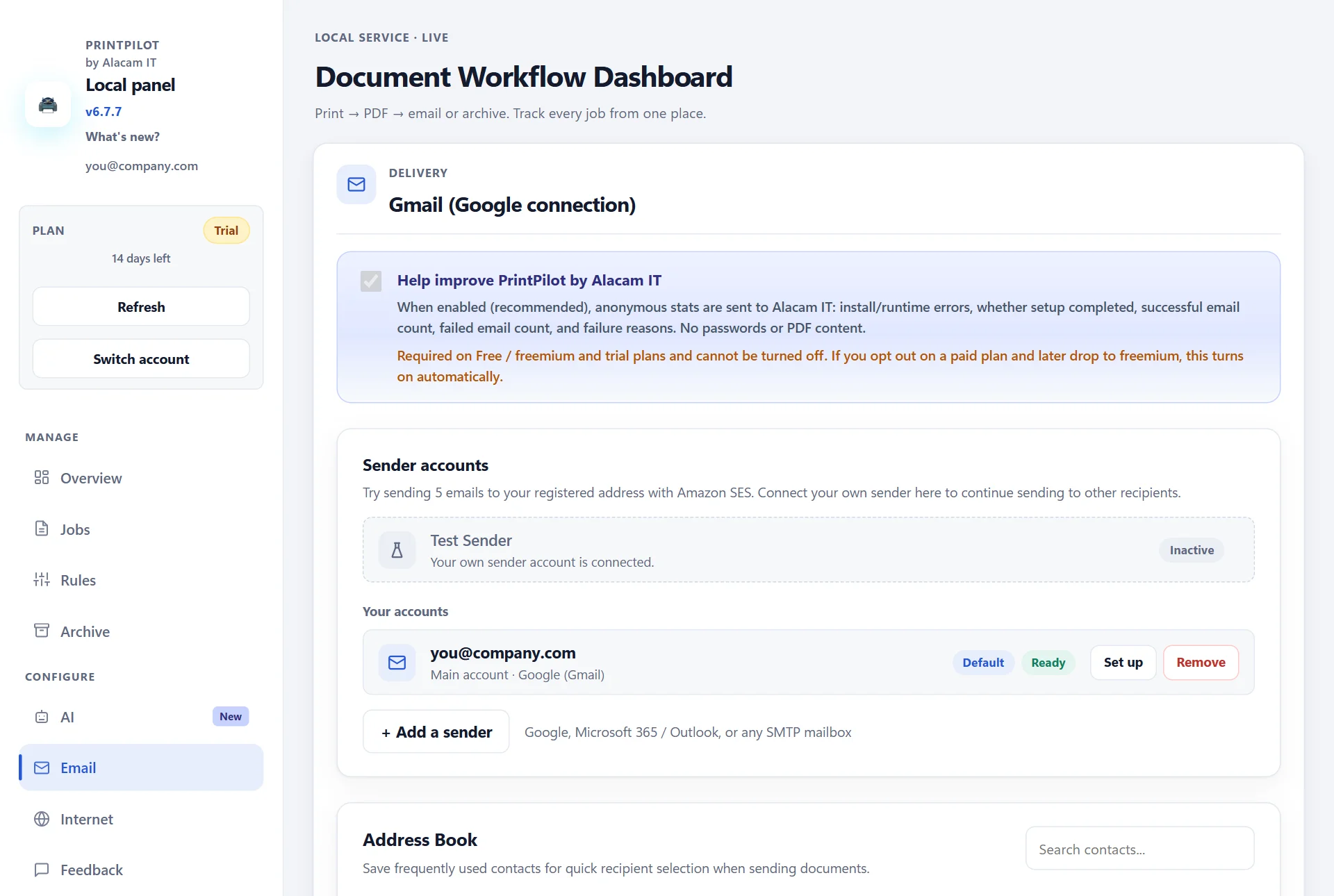
PrintPilot dashboard: Email page with a connected Gmail sender and the Add a sender button
4Step 2: Create a rule for recipients you use often
Rules save the recipients and texts you use again and again. In Rules, press Add rule, give it a name such as Invoices to accounting, and tick Send email. Enter the recipients separated by commas, choose the sender, and write the subject and body. The placeholder {fileName} puts the document name into the subject. Tick Archive PDF if you also want a copy in the local archive.
If you leave the recipients empty, PrintPilot uses the default recipient from Email settings. The free plan includes one rule; paid plans have unlimited rules.
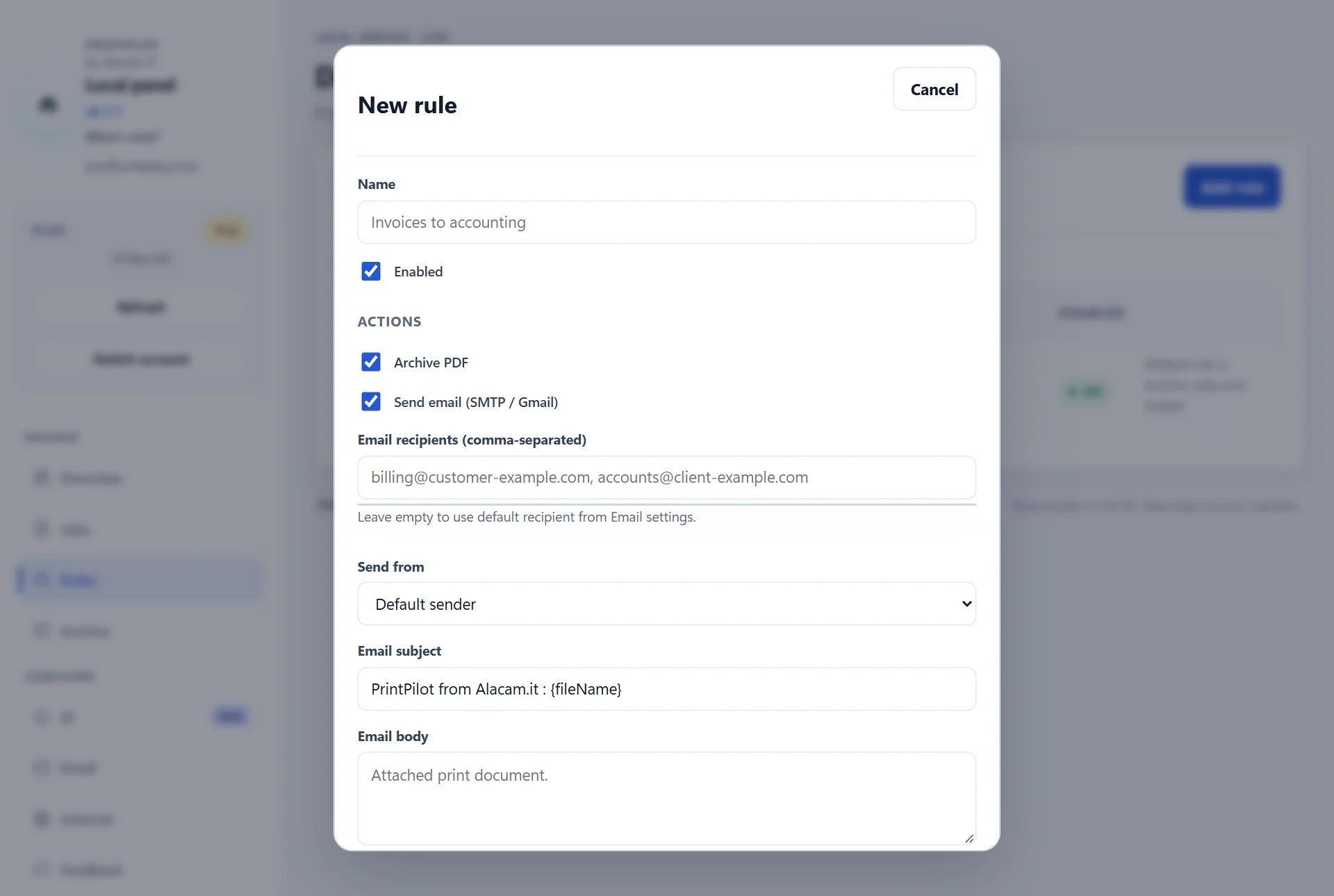
PrintPilot dashboard: new rule with recipients, sender, subject and body
5Step 3: Print the invoice and choose where it goes
In your accounting software, open the invoice, press Print and select the PrintPilot printer. The Send printed document window opens. Choose Use a saved rule to send it with the rule from step 2, or Manual recipients to type To, Cc and Bcc yourself. Addresses you save in the Address Book can be picked from a list.
When every invoice goes to a different customer, the AI assistant on paid plans saves the typing: it reads the PDF, fills in the recipient that the invoice names, and writes the subject and a short message.
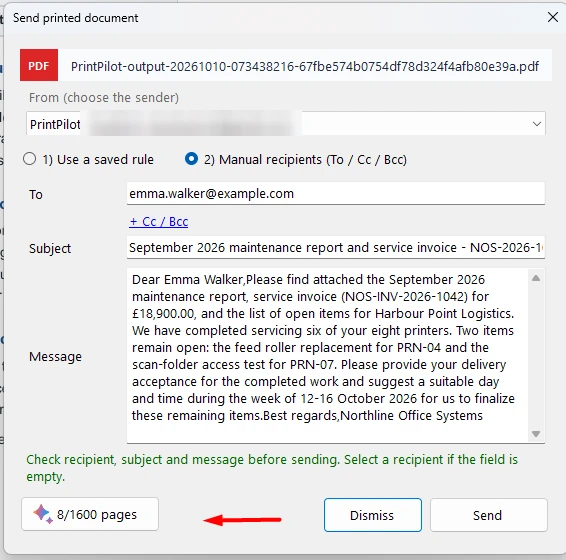
Send printed document window with recipient, subject and message filled in by AI
6Step 4: Check delivery in the Jobs list
Every print becomes a job in the dashboard. The Jobs list shows the document, the rule, the recipient and the status, such as Delivered, Archived, Retry or Failed. If the network or the mail server is briefly unavailable, PrintPilot retries the email on its own instead of losing it.
The PDFs stay on your PC in the PrintPilot archive folder (C:\ProgramData\PrintPilot\archive), so you have a copy of every invoice that went out.
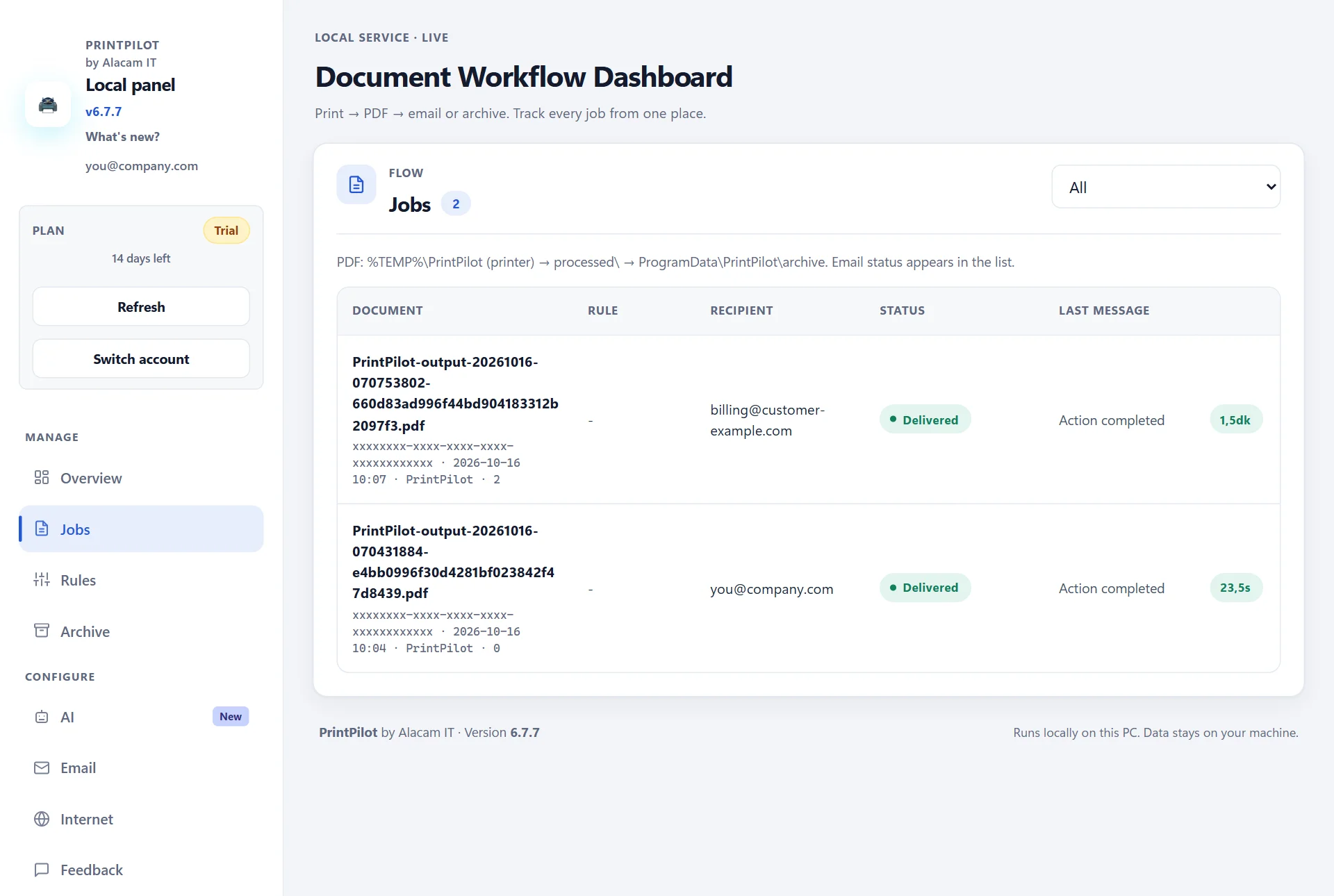
PrintPilot dashboard: Jobs list with two delivered invoices
7What it costs
Every new account starts with a 14-day trial with all features and no credit card. After the trial, the free Freemium plan keeps sending up to 15 emails per month. Paid plans are billed per device and month: Personal €4.90 (1 device), Team €14.90 (5 devices), SMB €34.90 (20 devices), Business €54.90 (50 devices) and Enterprise €74.90 (100 devices), plus VAT where it applies. Paid plans have no monthly email limit and include 100 AI pages per billing period.
Frequently Asked Questions (FAQ)
Do I need to change my accounting software?
No. PrintPilot is a printer as far as your software is concerned. You print the invoice as before and choose PrintPilot as the printer.
Which accounting and ERP programs does it work with?
With any program that can print on Windows 10 or 11, including desktop accounting software, ERP clients, Excel and Word templates, and browser-based billing tools.
Can each invoice go to a different customer?
Yes. Type the recipients in the send window, pick them from the Address Book, or let the AI assistant on paid plans fill in the recipient named in the invoice.
Do my invoices pass through Alacam IT's servers?
No. The PDF is created on your PC and sent through the Gmail, Microsoft 365 or SMTP account you connected. Two optional features are different: the trial test sender uses Amazon SES, and the AI assistant sends the document text to an AI provider, only after you agree.
Does PrintPilot create e-invoices such as XRechnung or Factur-X?
No. PrintPilot sends the invoice as a PDF, exactly as your software prints it. In countries where B2B invoices must be sent in a structured e-invoice format, check which format your invoices need.
Is there a free version?
Yes. The 14-day trial includes all features. After that, the Freemium plan sends up to 15 emails per month for free.
Start Automating Your Workflows Today
You do not need a new accounting system to email invoices. Install PrintPilot, connect your mail account and press Print. Start the free 14-day trial and send your next invoice from the Print button.
Download PrintPilot Free Trial