PrintPilot Printer Missing? Repair Microsoft Print to PDF in 2 Minutes
PrintPilot says it could not create its printer? Turn the Windows feature Microsoft Print to PDF off and on again, restart, and PrintPilot creates its printer. Step-by-step with video.
Right after installing, PrintPilot creates a printer called PrintPilot. On some PCs this fails and PrintPilot shows “PrintPilot could not create its printer”. The cause is almost always the same: the Windows feature Microsoft Print to PDF is turned off, removed or damaged. Turning it off and on again repairs it. It takes about two minutes and you need administrator rights.
Watch: repairing Microsoft Print to PDF so PrintPilot can create its printer (1 minute)
Auto Print to PDF & Send Email with PrintPilot
Stop wasting time on manual document printing. Start your free trial.
1Step 1: Open Control Panel
Click Search on the taskbar, type control panel and open Control Panel. Shortcut: press Windows + R, type optionalfeatures and press Enter to jump straight to step 3.
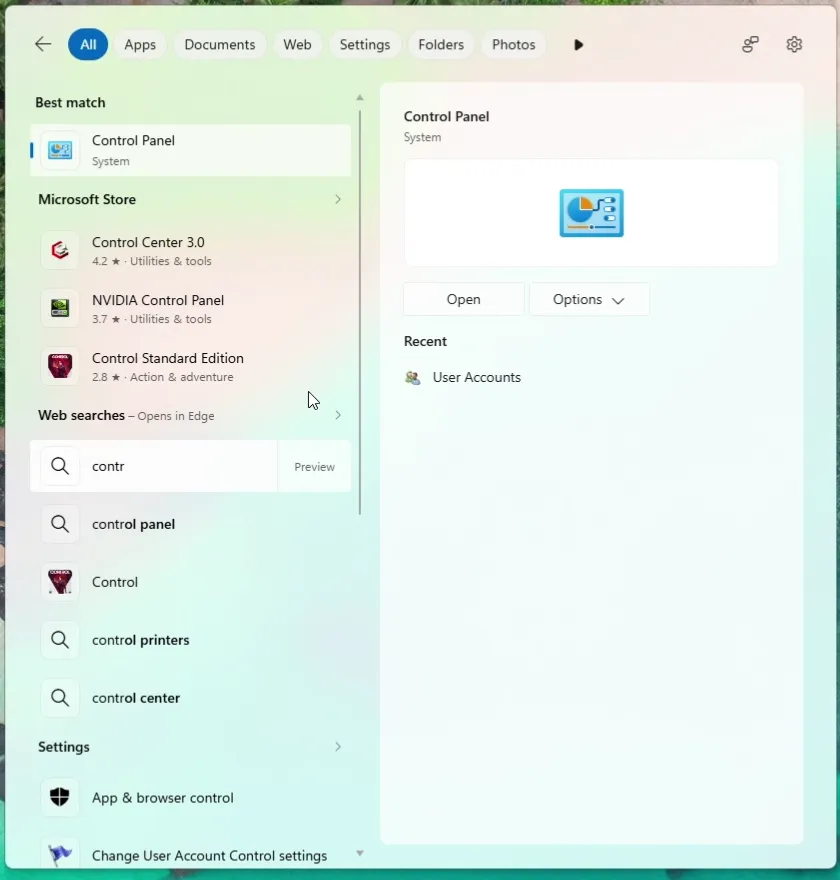
Windows search with control panel typed and Control Panel as the best match
2Step 2: Open Turn Windows features on or off
In the Control Panel search box type programs. Under Programs and Features click Turn Windows features on or off. The link has a shield because it needs administrator rights.
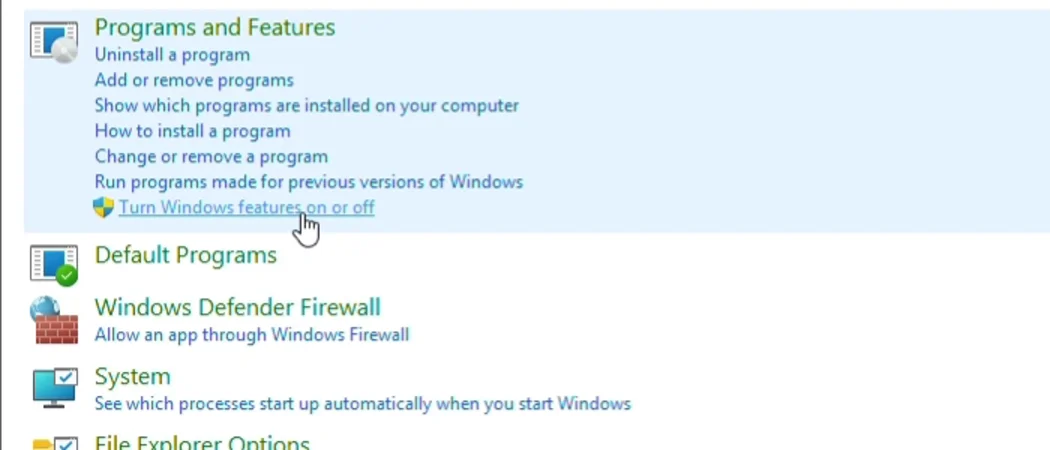
Control Panel search for programs with the Turn Windows features on or off link
3Step 3: Untick Microsoft Print to PDF and press OK
In the Windows Features window find Microsoft Print to PDF, clear its check box and press OK. This turns the feature off so Windows can install it again cleanly in step 5.
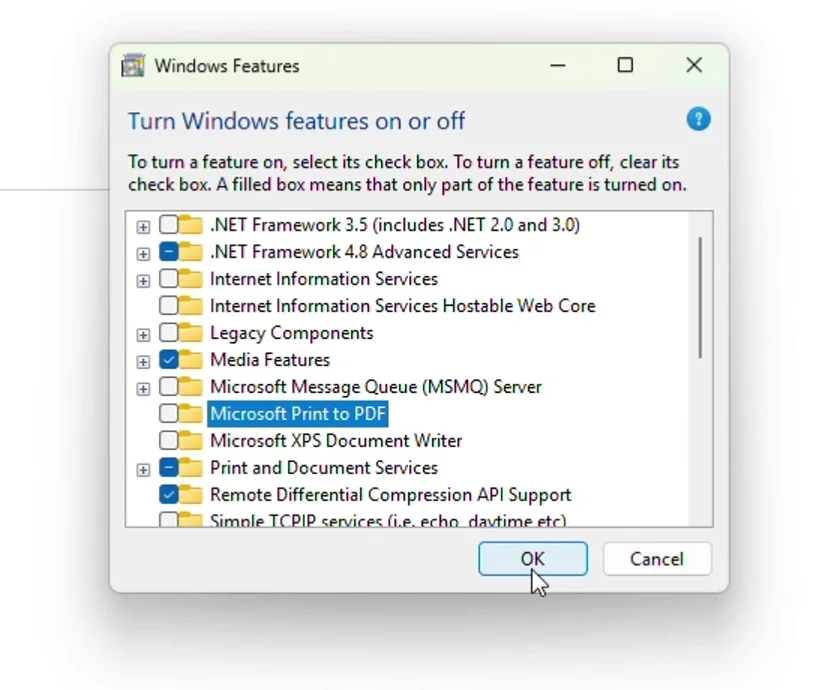
Windows Features window with Microsoft Print to PDF unticked and the OK button
4Step 4: Let Windows apply the change
Windows searches for the required files and applies the change. Wait until it says Windows completed the requested changes, then press Close.
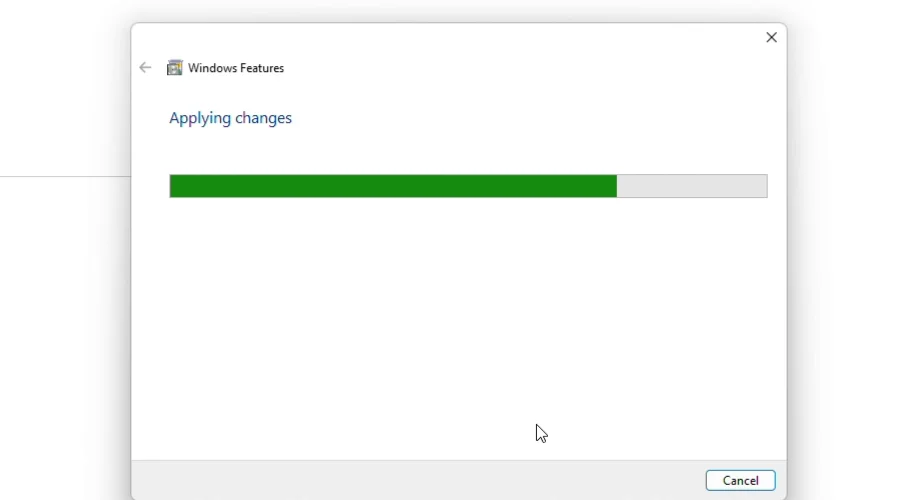
Windows Features applying changes with a progress bar
5Step 5: Tick Microsoft Print to PDF again and press OK
Open Turn Windows features on or off again, tick Microsoft Print to PDF and press OK. Windows installs the driver again and shows Windows completed the requested changes.
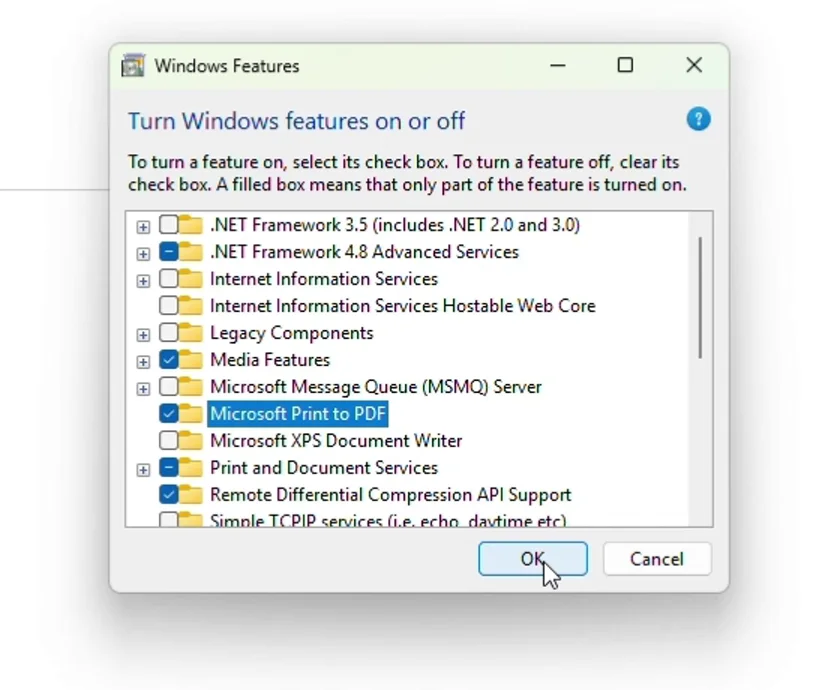
Windows Features window with Microsoft Print to PDF ticked again and the OK button
6Step 6: Restart and open PrintPilot
Press Close and restart your PC. Then open PrintPilot: it creates its printer on start and the fix card disappears. Print any document, choose the printer PrintPilot and the send window opens.
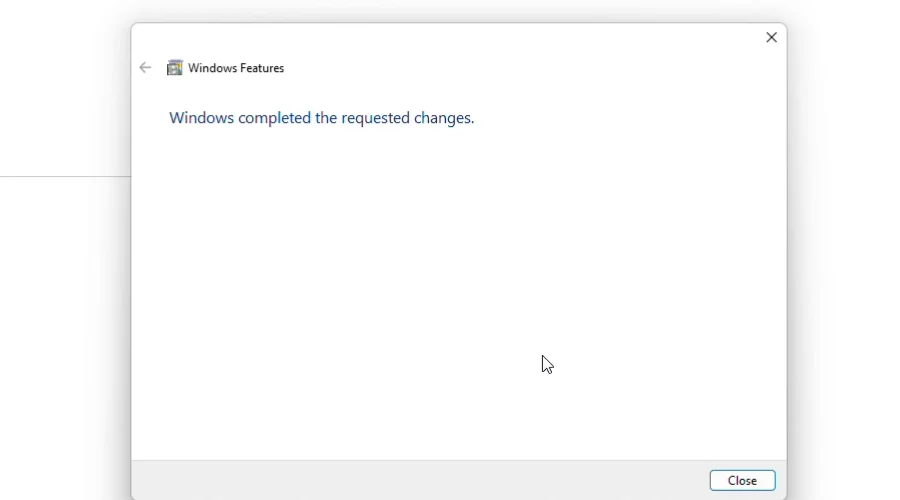
Windows Features message Windows completed the requested changes with the Close button
7Why PrintPilot needs Microsoft Print to PDF
PrintPilot does not install its own printer driver. It uses the Microsoft Print to PDF driver that comes with Windows 10 and 11 and adds a printer named PrintPilot on top of it. When that Windows feature is off, the driver is missing and Windows refuses to create the printer. The PrintPilot panel then shows a fix card instead of the first-print guide, and we also send these steps by email.
8Still no printer?
Some company PCs block Windows features or do not give you administrator rights. In that case ask your IT team to turn on Microsoft Print to PDF, or open PrintPilot, go to the Feedback page and send us a message. We will help you.
Frequently Asked Questions (FAQ)
Why does PrintPilot say it could not create its printer?
PrintPilot uses the Microsoft Print to PDF driver from Windows. When that feature is off or damaged, Windows cannot create the PrintPilot printer.
Why turn Microsoft Print to PDF off and on again?
Turning it off and on makes Windows reinstall the driver. That repairs it when it is ticked but does not work.
Do I need administrator rights?
Yes. Changing Windows features needs an administrator account. On a company PC ask your IT team.
Is there a shortcut to Windows Features?
Press Windows + R, type optionalfeatures and press Enter. The Windows Features window opens directly.
Do I have to reinstall PrintPilot afterwards?
No. Restart the PC and open PrintPilot: it creates its printer on start.
Related articles
How to Automatically Print to PDF and Send Email from Any Windows App
Stop saving PDFs manually. Learn how to turn any Ctrl+P print job from Chrome, Excel, your ERP or QuickBooks into an emailed PDF attachment automatically with PrintPilot.
How to Print Directly to WhatsApp from Any Windows App
Print from any Windows app to PrintPilot, press Share and pick WhatsApp: the PDF and your message open in WhatsApp Desktop, ready to send. Step-by-step with video.
PrintPilot, Bullzip and PDFCreator Compared: Virtual Printers That Email PDFs (2026)
A fact-checked comparison of PrintPilot, Bullzip PDF Printer, PDFCreator and Microsoft Print to PDF: price, email delivery, Gmail and Microsoft 365 sign-in, local processing and silent MSI installation.
Start Automating Your Workflows Today
Microsoft Print to PDF is a small Windows feature, but PrintPilot needs it. Repair it once, restart, and PrintPilot creates its printer. Still stuck? Write to us from the Feedback page in PrintPilot.
Download PrintPilot Free Trial