How to Automatically Print to PDF and Send Email from Any Windows App
Learn how to capture print actions from Chrome, ERP, or accounting software and automatically email PDF attachments without manual Save As steps.
In daily business operations, printing documents and emailing them as PDF attachments is a repetitive, time-consuming task. With PrintPilot virtual printer for Windows, simply click 'Print' (Ctrl+P) from any app to automatically convert to PDF and dispatch it to preconfigured recipients via email.
Auto Print to PDF & Send Email with PrintPilot
Stop wasting time on manual document printing. Start your free trial.
1Step 1: Select 'PrintPilot' as Your Printer
Open the print dialog (Ctrl+P) in Google Chrome, Excel, ERP, or any Windows application. Choose 'PrintPilot' from the target printer list and click 'Print'.
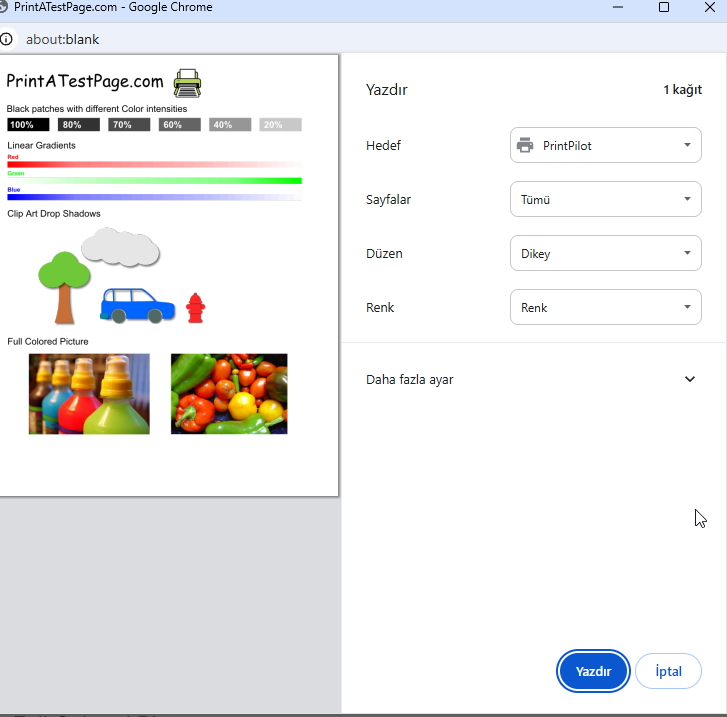
Selecting PrintPilot virtual printer in browser print dialog
2Step 2: Choose Routing Rule or Specify Recipient
Upon printing, the PrintPilot pop-up window appears. Select a preconfigured routing rule or enter manual recipient email addresses.
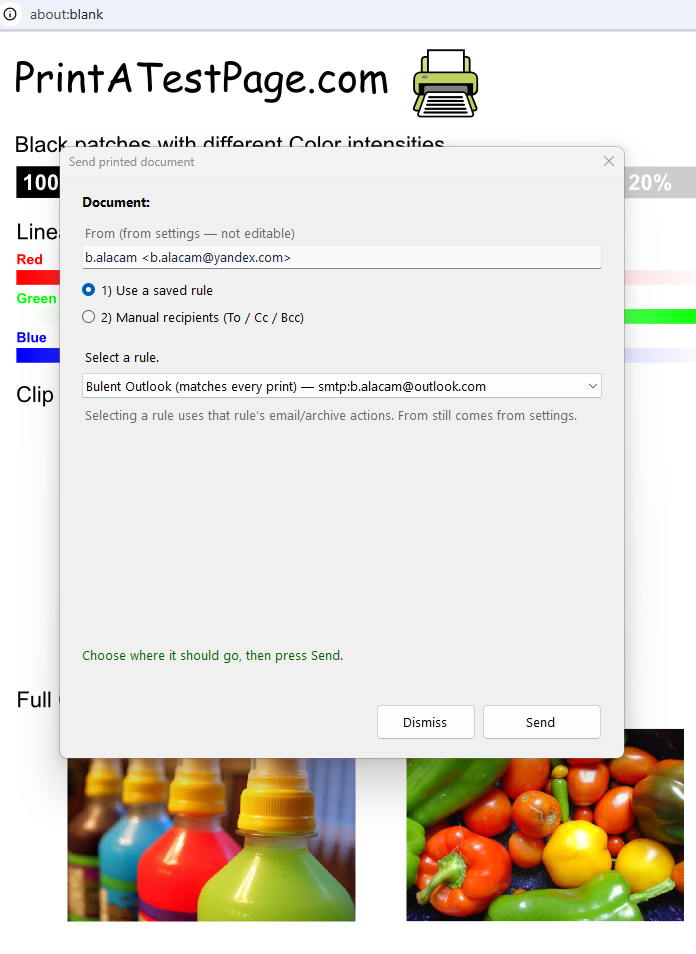
PrintPilot pop-up dialog for rule and recipient selection
3Step 3: Automatic Background PDF Creation and Queueing
After clicking Send, PrintPilot converts the print document to high-quality PDF in the background and queues it immediately via SMTP or Gmail.
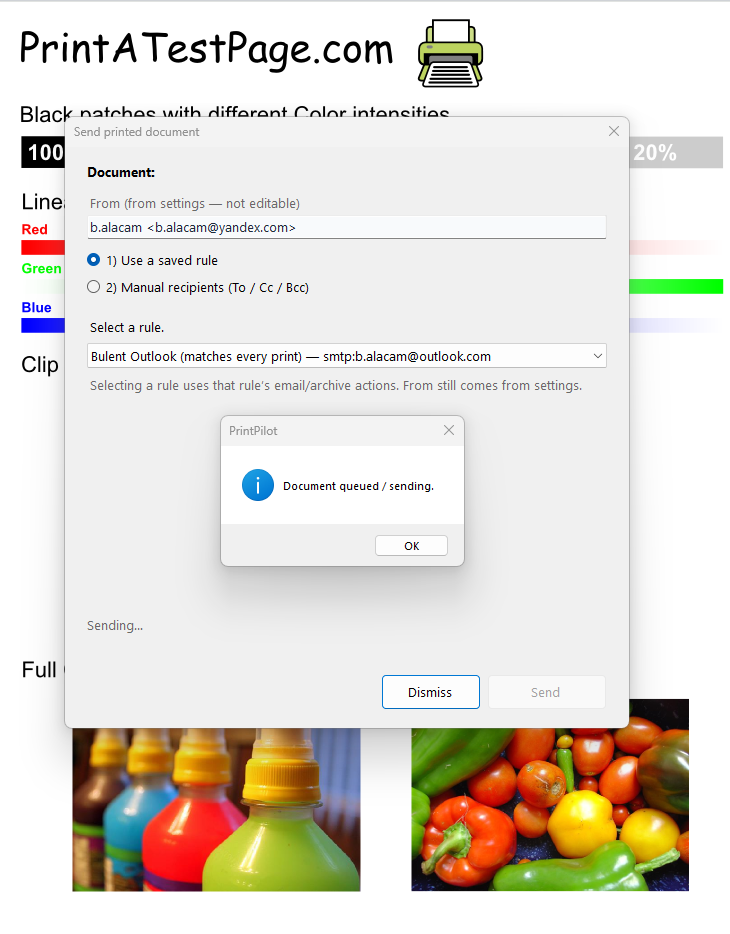
Document queued and sending confirmation in PrintPilot
4Step 4: Monitor Delivery Status in PrintPilot Panel
Track all print jobs, delivery statuses (Delivered, Pending, Cancelled), and active routing rules directly inside the PrintPilot desktop dashboard.
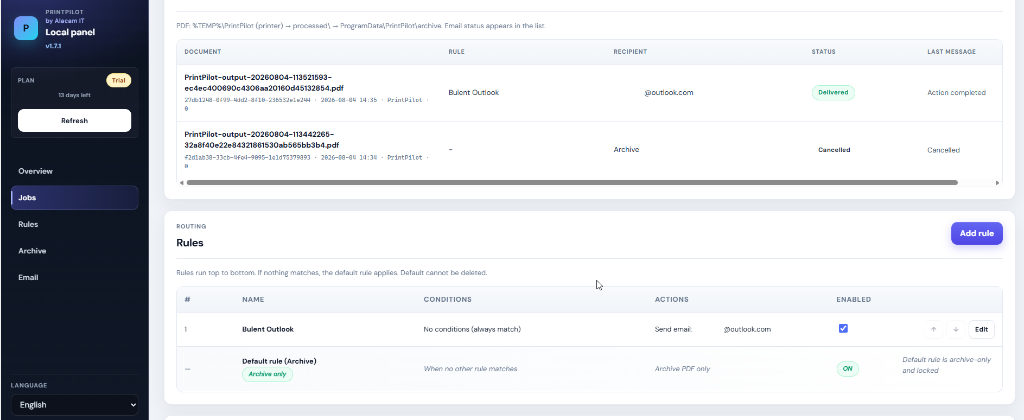
PrintPilot Local Panel dashboard showing job status and rules
5Step 5: Recipient Receives PDF Attachment
The recipient receives the email containing your printed PDF attachment within seconds. No extra manual file uploads required.
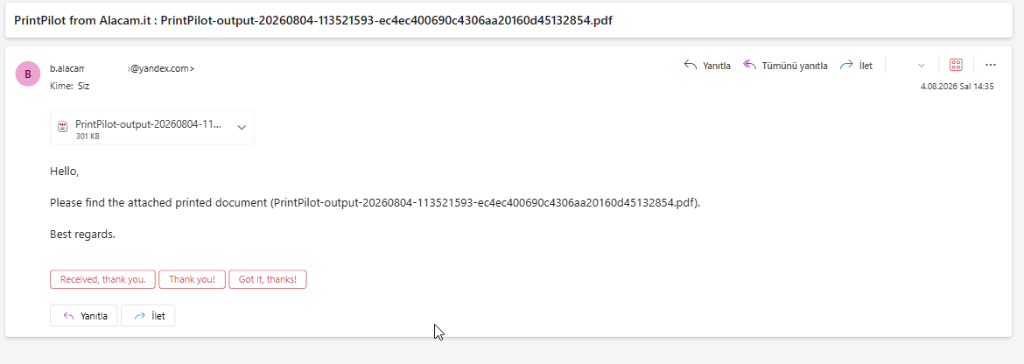
Inbox view showing automatically emailed PDF attachment
Frequently Asked Questions (FAQ)
Which Windows applications are supported?
Any software supporting printing on Windows 10/11 works seamlessly with PrintPilot (Chrome, Edge, ERP, QuickBooks, Excel, SAP, Word, etc.).
Can I use my custom SMTP or Gmail account?
Yes! You can connect your corporate SMTP server or authenticate securely via official Google OAuth for Gmail dispatch.
Start Automating Your Workflows Today
Automate your daily print-to-email workflows today with PrintPilot. Download the free trial to eliminate manual PDF saving.
Download PrintPilot Free Trial