Deploy a Virtual Email Printer with Microsoft Intune and GPO: PrintPilot MSI Silent Install Guide
Silent PrintPilot MSI install for IT admins: msiexec /qn with SETUPINI, a ready setup.ini, packaging as an Intune Win32 app with detection rules, and a GPO startup script alternative.
Rolling out a virtual email printer to every workstation by hand does not scale. This guide is for IT administrators who want PrintPilot on many Windows PCs without user interaction: prepare one setup.ini, test the silent MSI install, then deploy it with Microsoft Intune or Active Directory Group Policy. Every command below matches the current PrintPilot MSI.
Auto Print to PDF & Send Email with PrintPilot
Stop wasting time on manual document printing. Start your free trial.
1Before you start
You need the PrintPilot MSI from the download page. It is one installer for both 64-bit and 32-bit Windows 10 and 11. You also need a PrintPilot account for the company; the PCs are linked to it during installation and each linked PC uses one device of your plan.
For Intune, devices must be enrolled and run Windows 10 or 11 Pro, Enterprise or Education. For GPO, the computers must be in an OU you can link a policy to. In both cases the installer runs as SYSTEM, so users do not need administrator rights.
2Step 1: Prepare setup.ini
setup.ini tells the installer which account to link and how the PC reaches the internet. Create it from the template below. Mode matches the options on the Internet page of the PrintPilot dashboard: Auto (recommended), Direct, PrintPilotProxy for networks without direct internet access, or ManualProxy with your proxy host and port.
The MSI does not look for setup.ini next to itself. Always pass the full path in the SETUPINI property, as in the commands below.
; setup.ini - read by the PrintPilot MSI when you pass SETUPINI="<full path>"
[PrintPilot]
; PrintPilot account that every PC is linked to
Email=it-admin@yourcompany.com
Password=use-a-dedicated-account-password
; Optional referral code
ReferralCode=
; Internet mode: Auto, Direct, PrintPilotProxy or ManualProxy
Mode=Auto
; Optional IPv4 address of PrintPilotProxy / PrintPilot Server on another subnet
ServerIp=
; Only for Mode=ManualProxy
ProxyHost=
ProxyPort=
ProxyUsername=
ProxyPassword=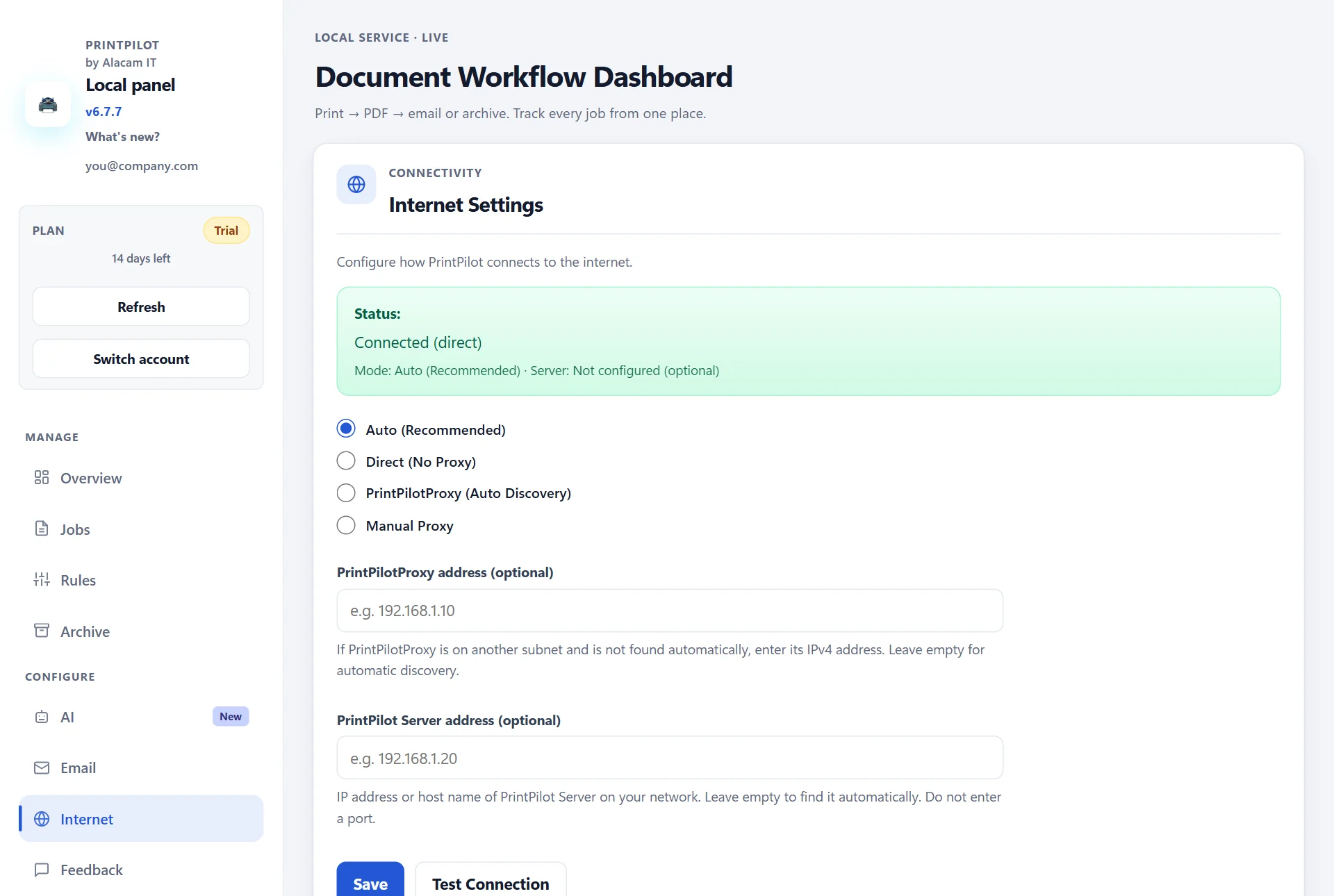
PrintPilot dashboard: Internet settings with Auto, Direct, PrintPilotProxy and Manual Proxy modes
3Step 2: Test the silent install on one PC
Before you deploy to a group, run the command on one test PC from an elevated Command Prompt. /qn hides all dialogs and /norestart prevents a restart; the installer creates the PrintPilot service and the PrintPilot printer.
Then check that the service is running and the printer exists, and open http://127.0.0.1:5077 on that PC: the PrintPilot dashboard should show the service as running and the account from setup.ini. If something fails, the MSI log and PrintPilot's install log in C:\ProgramData\PrintPilot\logs show why.
:: Run in an elevated Command Prompt on one test PC
msiexec /i "C:\Deploy\PrintPilot\PrintPilot.msi" /qn /norestart SETUPINI="C:\Deploy\PrintPilot\setup.ini" /l*v "%TEMP%\printpilot-msi.log"

:: Check the service and the printer
powershell -NoProfile -Command "Get-Service PrintPilot; Get-Printer -Name PrintPilot | Select-Object Name, DriverName, PortName"

:: PrintPilot's own install log
type "C:\ProgramData\PrintPilot\logs\install.log"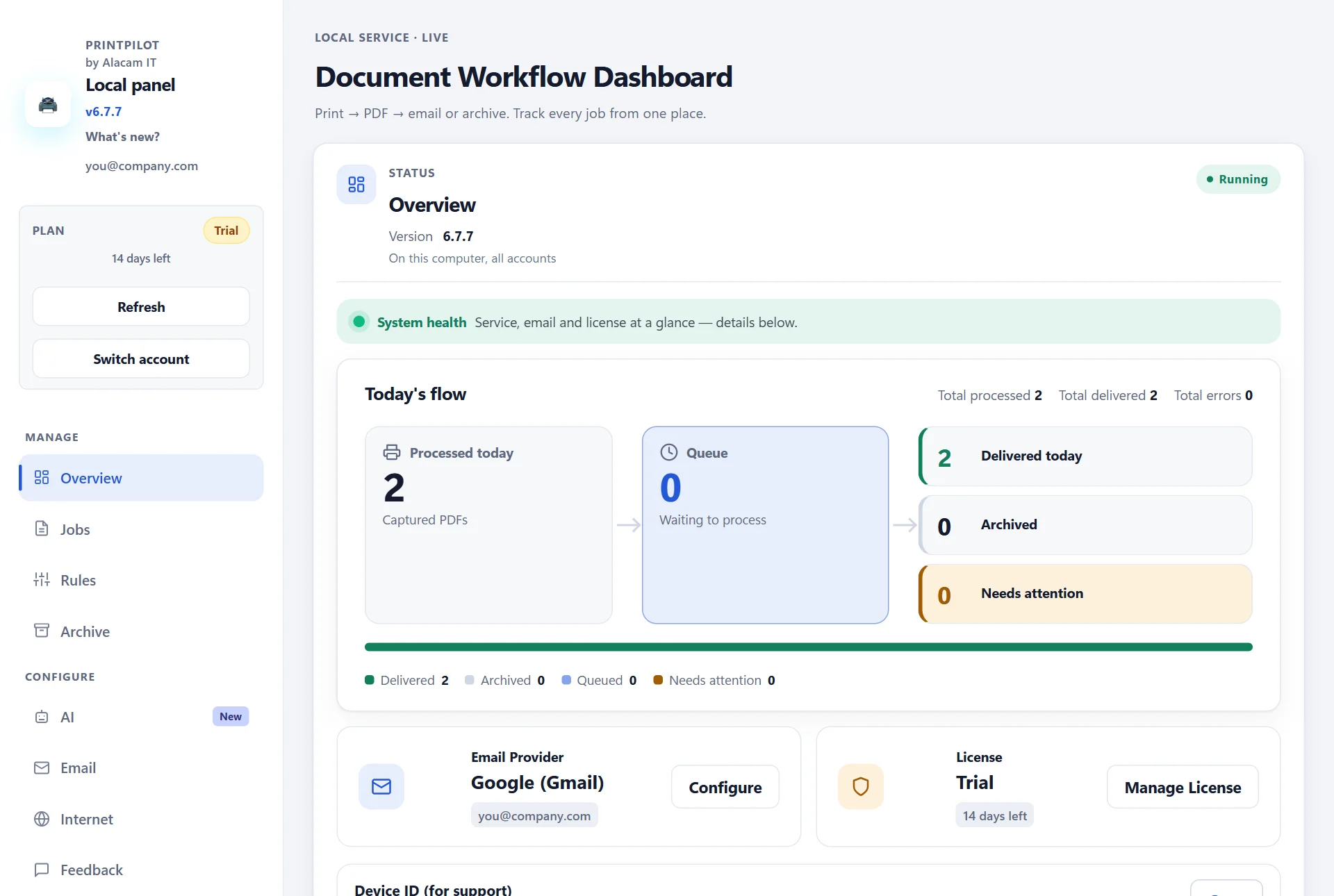
PrintPilot dashboard after a silent install: service running, Gmail sender and licence status
4Step 3: Build the Intune package
Intune deploys classic installers as Win32 apps in the .intunewin format. Put the MSI, setup.ini and a small install.cmd in one folder. install.cmd uses %~dp0, so the paths work wherever Intune extracts the package.
Run the Microsoft Win32 Content Prep Tool (IntuneWinAppUtil.exe) on that folder. Point -s at the MSI rather than at install.cmd: Intune then reads the MSI's product code and version, which fills in the uninstall command for you.
:: Folder layout (rename the downloaded MSI to PrintPilot.msi)
::   C:\Packages\PrintPilot\PrintPilot.msi
::   C:\Packages\PrintPilot\setup.ini
::   C:\Packages\PrintPilot\install.cmd

:: ---- install.cmd ----
@echo off
msiexec /i "%~dp0PrintPilot.msi" /qn /norestart SETUPINI="%~dp0setup.ini" /l*v "%ProgramData%\PrintPilot-msi.log"
exit /b %ERRORLEVEL%

:: ---- build the .intunewin file with the Microsoft Win32 Content Prep Tool ----
IntuneWinAppUtil.exe -c C:\Packages\PrintPilot -s C:\Packages\PrintPilot\PrintPilot.msi -o C:\Packages\Output -q5Step 4: Create the Win32 app in Intune
In the Microsoft Intune admin center, go to Apps > All apps > Create and choose Windows app (Win32). Upload PrintPilot.intunewin and fill in the app information. On the Program page, replace the pre-filled install command with install.cmd, keep the pre-filled msiexec /x uninstall command, set Install behavior to System and Device restart behavior to No specific action.
For detection, a file rule on PrintPilot.Service.exe is simple and works across versions. Assign the app as Required to a device group. When a new PrintPilot version comes out, add it as a new app and use supersedence; the MSI upgrades an existing installation in place.
App type            Windows app (Win32)
App package file    PrintPilot.intunewin
Install command     install.cmd
Uninstall command   msiexec /x "{product code}" /q   (pre-filled by Intune from the MSI)
Install behavior    System
Device restart      No specific action
Return codes        keep the defaults
Requirements        32-bit and 64-bit, minimum Windows 10
Detection rule      File
  Path              C:\Program Files\PrintPilot
  File or folder    PrintPilot.Service.exe
  Detection method  File or folder exists
Assignment Required, to a device group6Do you need an OMA-URI profile?
No. OMA-URI settings in custom configuration profiles change Windows settings through configuration service providers. They are not needed to install PrintPilot. The Win32 app type is the better fit because it gives you detection rules, automatic retries, supersedence for updates and per-device install status in the admin center.
7Alternative: deploy with a GPO startup script
Without Intune, use the same MSI command in a computer startup script. Startup scripts run as SYSTEM before anyone signs in. Copy the MSI and setup.ini to a share, create a GPO linked to the workstations' OU, and add the script under Computer Configuration > Policies > Windows Settings > Scripts (Startup/Shutdown) > Startup. The check at the top skips PCs where PrintPilot is already installed.
Run gpupdate /force on a test PC and restart it to check the result. Our separate guide on GPO and setup.ini covers the Group Policy side step by step.
@echo off
:: GPO: Computer Configuration > Policies > Windows Settings > Scripts (Startup/Shutdown) > Startup
:: The share should be readable by Domain Computers only, because setup.ini holds a password.
set SHARE=\\fileserver.yourcompany.local\Deploy$\PrintPilot

if exist "%ProgramFiles%\PrintPilot\PrintPilot.Service.exe" exit /b 0

msiexec /i "%SHARE%\PrintPilot.msi" /qn /norestart SETUPINI="%SHARE%\setup.ini" /l*v "%TEMP%\printpilot-msi.log"
exit /b 08After installation: senders, licences and updates
The installer links each PC to your account, but it does not connect mailboxes. Each user connects their own Google, Microsoft 365 or SMTP sender once in the dashboard under Email, because Google and Microsoft ask the person who owns the mailbox to grant permission.
The linked PCs appear in your account at alacam.it, where you see which devices have a licence. Paid plans cover 1, 5, 20, 50 or 100 devices. To update, deploy the newer MSI the same way; it upgrades the existing installation and keeps its settings.
Frequently Asked Questions (FAQ)
Which MSI parameters does PrintPilot support?
The standard Windows Installer switches such as /qn, /norestart and /l*v, plus the SETUPINI property with the full path to your setup.ini. The installer has no other interactive steps.
Do users need administrator rights?
No. Intune installs Win32 apps in the System context and GPO startup scripts run as SYSTEM, so the service and printer are created without the user being an administrator.
Can I deploy the Microsoft Store version with Intune instead?
You can, but the MSI is the better choice for managed rollouts: it reads setup.ini and creates the printer during installation. The Store package creates the printer the first time the app is opened and has no setup.ini.
How are licences counted?
Per device. Every PC linked to your account uses one device of your plan: Personal 1, Team 5, SMB 20, Business 50 and Enterprise 100.
How do I uninstall PrintPilot centrally?
Assign the Intune app to an Uninstall group, or run msiexec /x with the product code. The MSI removes the service, the printer and the program files.
The printer was not created. What should I check?
Check that the Windows feature Microsoft Print to PDF is turned on, then look at C:\ProgramData\PrintPilot\logs\install.log. The dashboard's Overview page also shows when the print driver is missing and how to fix it.
Start Automating Your Workflows Today
One MSI, one setup.ini and one command are enough to put PrintPilot on every workstation. Download the MSI, test it on one PC, and roll it out with Intune or GPO. Start with the free 14-day trial and choose the device plan that fits your fleet.
Download PrintPilot Free Trial