AI Email Drafts from Printed PDFs: PrintPilot Fills In Recipient, Subject and Message
Print any document and let PrintPilot's AI read it, pick the recipient named in it, and write the subject and message. You review the draft and press Send.
Printing a document to PDF and emailing it is easy to automate when the recipient is always the same. It gets slow when every document goes to someone different: you have to read the PDF, find the right address, write a subject and type a short message. PrintPilot's AI assistant does that part for you. It reads the document you just printed and fills in the recipient, subject and message. You check the draft and press Send.
Auto Print to PDF & Send Email with PrintPilot
Stop wasting time on manual document printing. Start your free trial.
1What the PrintPilot AI assistant does
After you print from any Windows app (an ERP, accounting software, Excel, Word or a browser), PrintPilot turns the job into a PDF and opens the Send printed document window. With AI turned on, one click reads the PDF and suggests three things: the To address that the document names as its recipient, a subject line, and a ready-to-send message that summarises the document. It works with invoices, delivery notes, service reports, quotes and any other document that says who it is for.
2Step 1: Turn on AI in the PrintPilot dashboard
Open the PrintPilot dashboard on your PC and go to AI settings. Read the notice and tick the box to agree that your document may be shared for AI analysis. The page counter next to the provider shows how many AI pages you have used and how many you have.
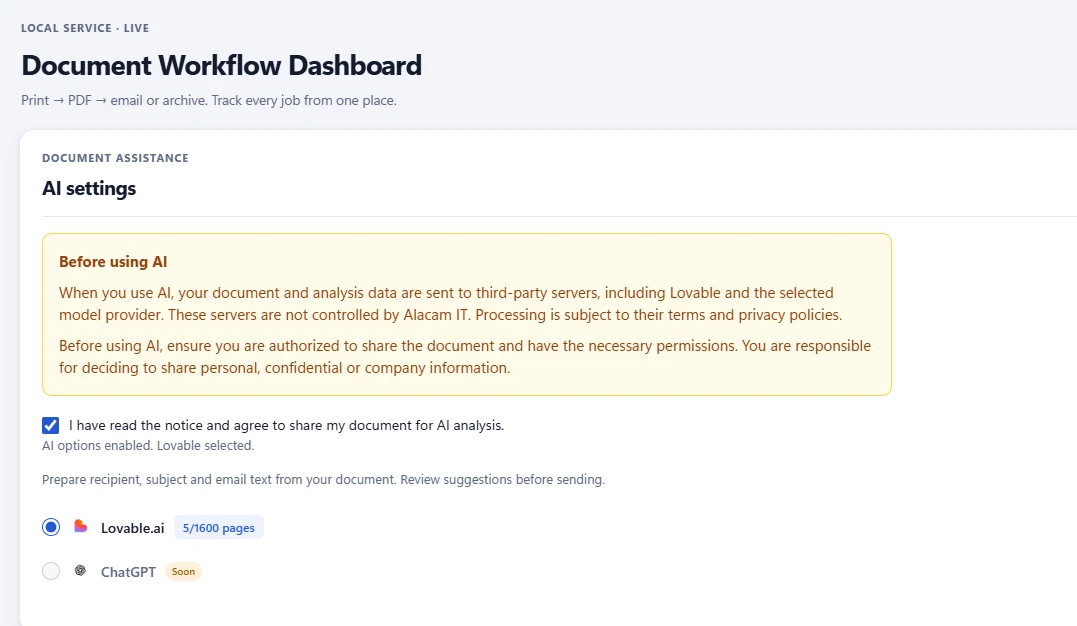
PrintPilot dashboard: AI settings with the data sharing notice and consent checkbox
3Step 2: Print the document to PrintPilot
Open the document in any application, press Ctrl+P and choose PrintPilot as the printer. In this example we print a three-page maintenance report and service invoice. The document itself names the customer's operations manager as the only recipient.
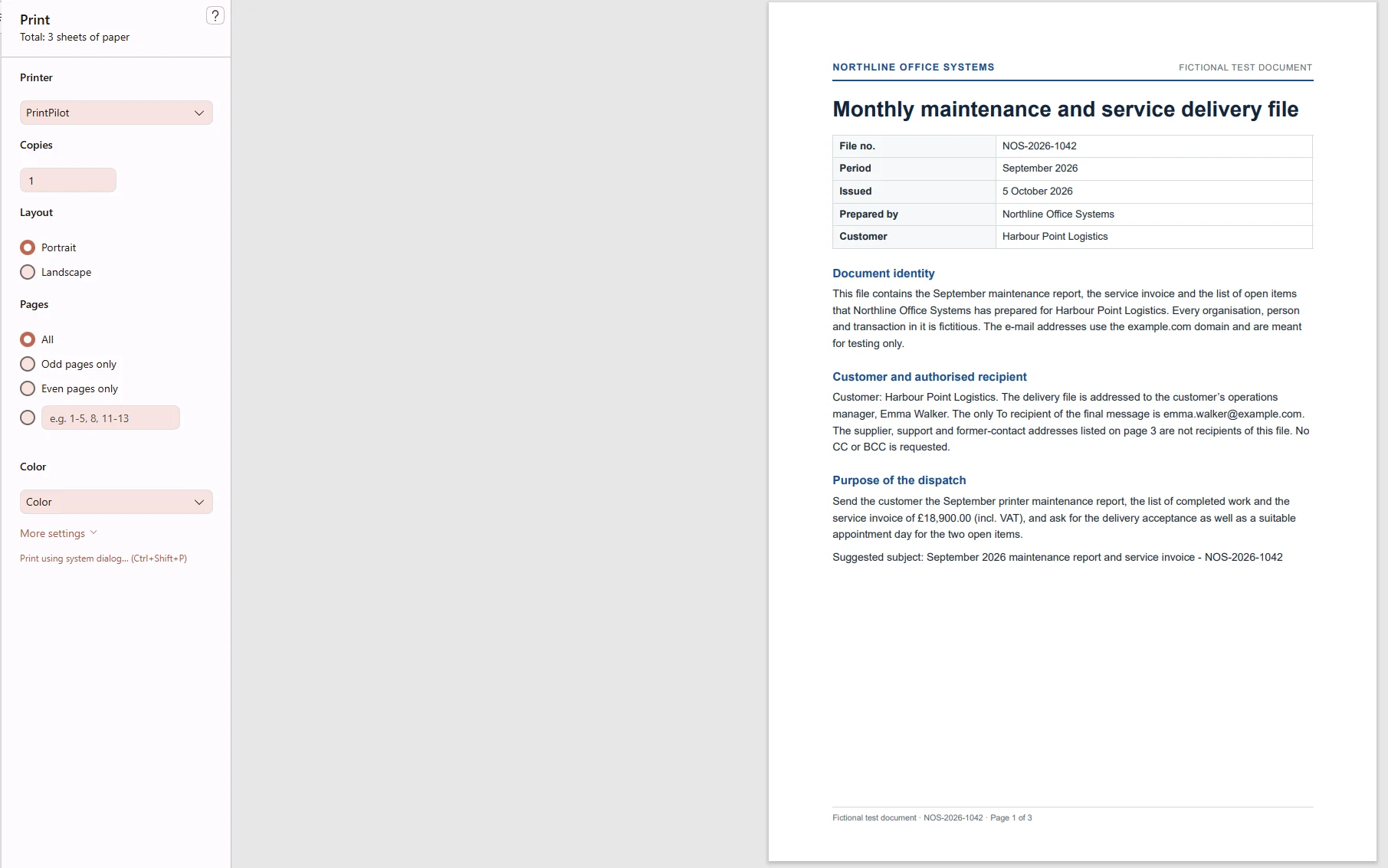
Printing a test maintenance report to the PrintPilot virtual printer
4Step 3: Let AI fill in the recipient, subject and message
In the Send printed document window, choose Manual recipients and click the AI button at the bottom left. PrintPilot reads the PDF and fills in To, Subject and Message. In our test it picked the one address the document named as the recipient, used the suggested subject and wrote a message that mentions the invoice number, the amount and the two open items. The button also shows your remaining AI pages.
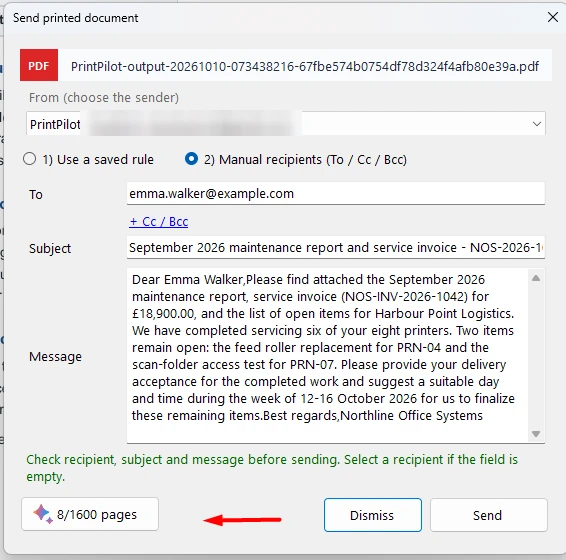
Send printed document window with the recipient, subject and message filled in by AI
5Step 4: Review the draft and send
Read the suggestion, edit anything you like, and press Send. The email goes out from your own Gmail, Microsoft or SMTP account with the PDF attached, exactly as you approved it. If the draft is not right, press Dismiss and nothing is sent.
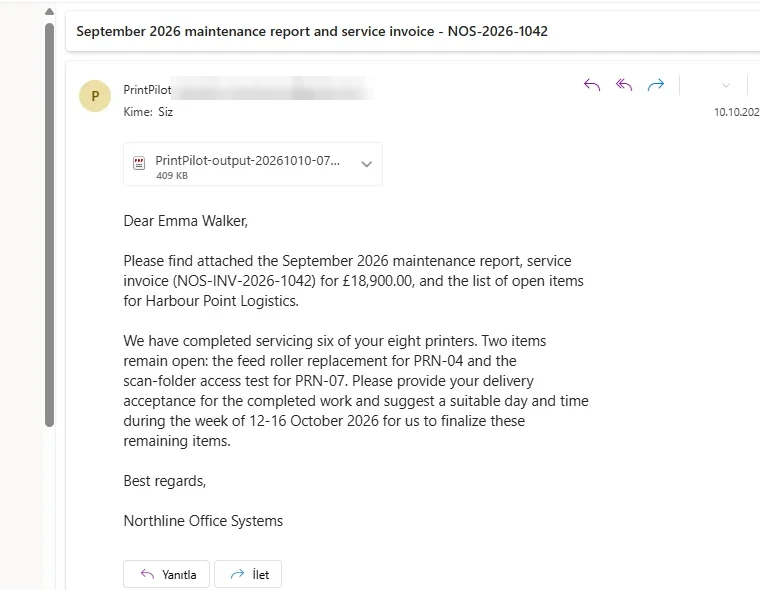
The received email with the PDF attached and the AI-written message
6How the AI chooses the recipient, and when it does not
The AI only picks an address that appears in the document and is clearly marked as the recipient. It never invents an address. In our test the document also listed supplier, support and former-contact addresses, and the AI correctly left them out. If the recipient is unclear, the To field stays empty so you can choose it yourself. Cc and Bcc are never changed.
7Privacy: what is sent and what is kept
PrintPilot extracts the text on your PC and only runs OCR locally on pages whose text cannot be read. The text is then sent through alacam.it to a third-party AI provider to write the draft, so only use AI for documents you are allowed to share. Alacam IT keeps a usage record (page count, status and model), not the document text or the suggested email.
8Pricing: AI pages
AI is included in paid PrintPilot plans with 100 AI pages per billing period, shared by all licensed PCs on the account. One PDF page uses one AI page, and a document can have up to 50 pages. If you need more, extra page packs start at €5.90 for 500 pages and stay valid for 12 months. The free plan and the trial do not include AI.
Frequently Asked Questions (FAQ)
Does PrintPilot send emails written by AI automatically?
No. The AI only prepares a draft in the Send printed document window. You review it and press Send yourself.
Can the AI send my document to the wrong person?
It only suggests an address that the document itself names as the recipient. If that is unclear, the To field stays empty, and you always check the draft before sending.
Which programs does the AI work with?
Any Windows 10 or 11 program that can print: ERP and accounting software, Excel, Word, PDF readers and web browsers.
How many pages can I analyse?
Paid plans include 100 AI pages per billing period. Each PDF page counts as one page, up to 50 pages per document. Extra packs of 500 to 10,000 pages are available.
Is my document stored by Alacam IT?
No. Alacam IT keeps only usage data such as the page count and status. The document text is processed by a third-party AI provider to write the draft.
Start Automating Your Workflows Today
When every document goes to a different person, AI drafts save the most time: print, check and send. Download PrintPilot, choose a paid plan and try the AI assistant on your next invoice or report.
Download PrintPilot Free Trial